

Fewer clicks, more time to
model your project in Revit.
Download this free cheat sheet with 195 Revit 2024 keyboard shortcuts, organized by task to help you work more fluidly on architecture and BIM projects.
Don’t waste time hunting for commands when you could be working on your project
When you work in Revit for hours, every click adds up.
Searching the ribbon for a command, switching tools or tracking down a feature you use every day can break your working rhythm.
Revit keyboard shortcuts give you faster access to the commands you already know and cut unnecessary steps while you model, modify or document.
195 Revit shortcuts, organized for your day-to-day work
This cheat sheet brings together the 195 default Revit 2024 keyboard shortcuts and organizes them by the tasks you do during a project. Tap a category to see the list.
Navigate the model
16 shortcutsShortcuts to move around and work more fluidly inside your project.
See the full list ↓Control what you see
38 shortcutsCommands to manage views, elements and the different ways of displaying the model.
See the full list ↓Draw and model
21 shortcutsShortcuts for quick access to the tools you use while building the model.
See the full list ↓Modify
34 shortcutsCommands to select, edit, move, copy, adjust and transform elements.
See the full list ↓Document and coordinate
37 shortcutsUseful shortcuts for working with drawings, documentation and project coordination.
See the full list ↓Snaps
17 shortcutsCombinations to control more precisely how you select and place elements.
See the full list ↓Systems and MEP
14 shortcutsShortcuts related to system tools and elements in Revit.
See the full list ↓The full list of Revit 2024 shortcuts
Showing 177 of 177
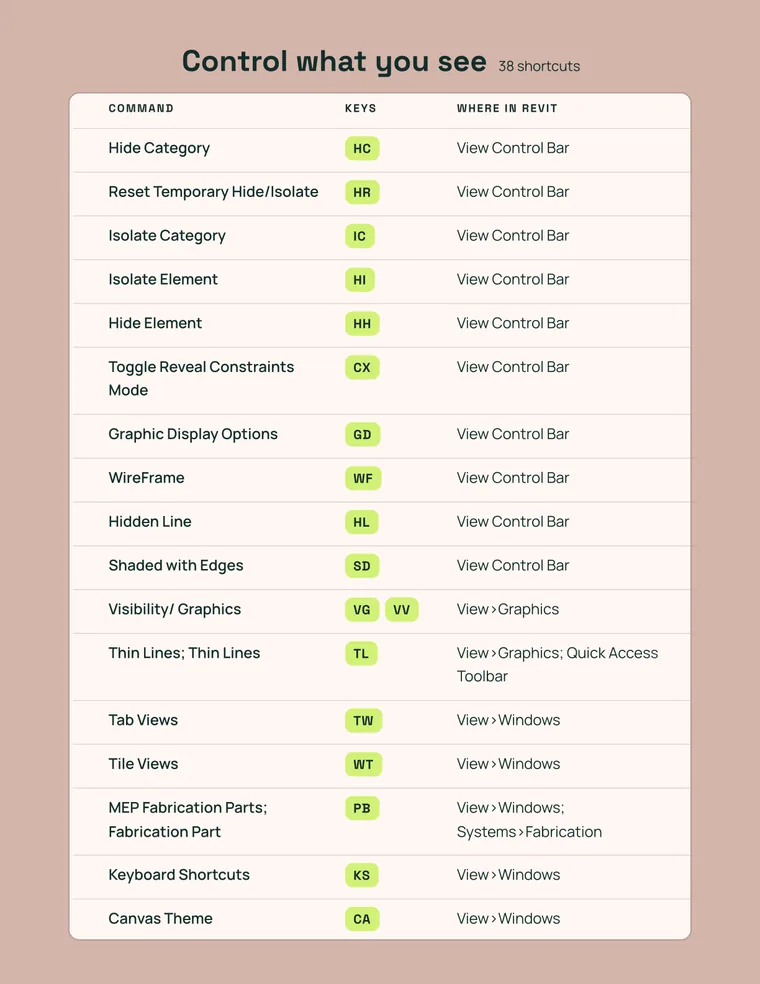
Control what you see
38 shortcuts| Command | Shortcut | Where in Revit | What it does |
|---|---|---|---|
| Hide Category | HC | View Control Bar | Temporarily hides an entire category in the view. |
| Reset Temporary Hide/Isolate | HR | View Control Bar | Resets all temporary hide and isolate settings. |
| Isolate Category | IC | View Control Bar | Shows only one category, temporarily hiding the rest. |
| Isolate Element | HI | View Control Bar | Shows only the selected element, hiding the rest. |
| Hide Element | HH | View Control Bar | Temporarily hides the selected element. |
| Toggle Reveal Constraints Mode | CX | View Control Bar | Shows or hides the model's constraints. |
| Graphic Display Options | GD | View Control Bar | Opens the view's graphic options (shadows, lighting, style). |
| WireFrame | WF | View Control Bar | Switches the view's visual style to wireframe (no surfaces). |
| Hidden Line | HL | View Control Bar | Switches the visual style to hidden line, without color. |
| Shaded with Edges | SD | View Control Bar | Switches the visual style to shaded with visible edges. |
| Visibility/Graphics | VG · VV | View > Graphics | Opens the view's visibility and graphics controls by category. |
| Thin Lines | TL | View > Graphics; Quick Access Toolbar | Shows every line at the same weight, regardless of scale. |
| Tab Views | TW | View > Windows | Arranges the open windows as tabs. |
| Tile Views | WT | View > Windows | Tiles the open windows side by side. |
| MEP Fabrication Parts | PB | View > Windows; Systems > Fabrication | Opens the MEP fabrication parts browser. |
| Keyboard Shortcuts | KS | View > Windows | Opens Revit's keyboard shortcuts editor. |
| Canvas Theme | CA | View > Windows | Changes the visual theme of the drawing area (light/dark). |
| Render | RR | View > Presentation; View Control Bar | Generates a photorealistic render of the current 3D view. |
| Cloud Rendering: Render in Cloud | RD | View > Presentation; View Control Bar | Sends the view to be rendered in the Autodesk cloud. |
| Cloud Rendering: Render Gallery | RG | View > Presentation; View Control Bar | Opens the gallery of renders generated in the cloud. |
| Define a new center of rotation | R3 | Context Menu | Sets a new point as the 3D view's center of rotation. |
| Exclude | EX | Context Menu | Excludes an element from a group or assembly. |
| Toggle Visibility | TV | Context Menu | Quickly shows or hides a selected element. |
| Find in Project Browser | FF | Context Menu | Finds the selected element in the Project Browser. |
| Select All Instances: In Entire Project | SA | Context Menu | Selects every instance of the same type in the whole project. |
| Restore Excluded Member | RB | Context Menu | Restores a member previously excluded from an assembly. |
| Repeat Last Command | RC | Context Menu | Repeats the last command you ran. |
| Flip Rebar Set | FL | Context Menu | Flips the direction of a rebar set. |
| Move to Project | MP | Context Menu | Moves a linked or grouped element into the active project. |
| System Browser | Fn9 | View > Windows | Opens the project's MEP System Browser. |
| Activate the First Contextual Tab | Ctrl+` | Not listed | Activates the first contextual tab available on the ribbon. |
| Graphic Override by Element: toggle transparency | EOT | Not listed | Turns graphic transparency on or off for an element. |
| Graphic Override by Category: toggle transparency | VOT | Not listed | Turns graphic transparency on or off for a category. |
| Graphic Override by Element: toggle ghost surface | EOG | Not listed | Turns the ghost surface effect on or off for an element. |
| Graphic Override by Category: toggle ghost surface | VOG | Not listed | Turns the ghost surface effect on or off for a category. |
| Graphic Override by Category: toggle halftone | VOH | Not listed | Turns graphic halftone on or off for a category. |
| Background Processes | Fn11 | Status Bar | Shows the processes running in the background. |
| Graphic Override by Element: toggle halftone | EOH | Not listed | Turns graphic halftone on or off for an element. |
Draw and model
21 shortcuts| Command | Shortcut | Where in Revit | What it does |
|---|---|---|---|
| Wall | WA | Architecture > Build; Structure > Structure | Draws an architectural or structural wall. |
| Door | DR | Architecture > Build | Places a door in an existing wall. |
| Window | WN | Architecture > Build | Places a window in an existing wall. |
| Column | CL | Architecture > Build; Structure > Structure | Places an architectural or structural column. |
| Floor: Structural | SB | Architecture > Build; Structure > Structure | Creates a structural floor or slab. |
| Model Line | LI | Architecture > Model; Structure > Model | Draws a model line that is visible in 3D. |
| Room | RM | Architecture > Room & Area | Creates a room in the model. |
| Tag Room | RT | Architecture > Room & Area; Annotate > Tag | Places a room tag in the view. |
| Grid | GR | Architecture > Datum; Structure > Datum | Draws a project grid line. |
| Create Group (Model/Detail) | GP | Create > Model; Annotate > Detail | Groups the selected elements into a reusable group. |
| Structural Framing: Beam | BM | Structure > Structure | Places a structural beam. |
| Structural Framing: Brace | BR | Structure > Structure | Places a structural brace. |
| Structural Beam System | BS | Structure > Structure | Creates an automatic beam system within an area. |
| Structural Foundation: Wall | FT | Structure > Foundation | Places a wall foundation. |
| Reinforcement Numbers | RN | Structure > Reinforcement | Assigns numbers to the model's reinforcement. |
| Boundary Line / Rebar Line | LI | Create > Draw; Modify > Draw | Draws an area boundary or a rebar line. |
| Place a Component | CM | Create > Model; Architecture > Build | Places a component or family in the model. |
| Level | LL | Create > Datum; Architecture > Datum | Creates a reference level for the project. |
| Reference Plane | RP | Create > Datum; Create > Draw | Draws an auxiliary reference plane. |
| Pick a Plane (Work Plane) | PK | Create > Work Plane | Picks the active work plane. |
| Reinforcement | RF | Precast > Reinforcement | Adds reinforcement to a precast element. |
Modify
34 shortcuts| Command | Shortcut | Where in Revit | What it does |
|---|---|---|---|
| Modify | MD | Create > Select; Modify > Select | Activates the general select/modify tool. |
| Match Type Properties | MA | Modify > Clipboard | Copies type properties from one element to another. |
| Paint | PT | Modify > Geometry | Applies a material to a face of the model. |
| Cope / Apply Coping | CP | Modify > Geometry | Applies a cope between structural elements. |
| Remove Coping | RC | Modify > Geometry | Removes the cope applied between structural elements. |
| Split Face | SF | Modify > Geometry | Splits a face so you can apply different materials. |
| Activate Controls and Dimensions | AC | Modify > Controls; Quick Access Toolbar | Shows an element's controls and temporary dimensions. |
| Align | AL | Modify > Modify | Aligns one or more elements to a reference. |
| Move | MV | Modify > Modify | Moves the selected element to another position. |
| Offset | OF | Modify > Modify | Creates a parallel copy at a set distance. |
| Copy | CO · CC | Modify > Modify | Copies the selected element. |
| Mirror – Pick Axis | MM | Modify > Modify | Mirrors the element using an existing axis. |
| Rotate | RO | Modify > Modify | Rotates the selected element around a point. |
| Mirror – Draw Axis | DM | Modify > Modify | Mirrors the element by drawing a new axis. |
| Trim/Extend to Corner | TR | Modify > Modify | Trims or extends two elements to form a corner. |
| Split Element | SL | Modify > Modify | Splits a linear element into two parts. |
| Array | AR | Modify > Modify | Creates repeated copies in a line or radially. |
| Scale | RE | Modify > Modify | Resizes an element or group of elements. |
| Unpin | UP | Modify > Modify | Releases a previously pinned element. |
| Pin | PN | Modify > Modify | Pins an element so it can't be moved by accident. |
| Delete | DE | Modify > Modify | Deletes the selected element. |
| Create Similar | CS | Modify > Create | Creates a new element of the same type as the selected one. |
| Hide in View: Hide Elements | EH | Modify > View | Hides the selected elements in the view. |
| Hide in View: Hide Category | VH | Modify > View | Hides the selected element's whole category in the view. |
| Override Graphics in View: by Element | EOD | Modify > View | Changes an element's graphic appearance in this view only. |
| Linework | LW | Modify > View | Changes the line style of a specific edge. |
| Selection Box | BX | Modify > View | Creates a 3D view cropped to the current selection. |
| Add to Group | AP | Contextual Tabs > Edit Group | Adds an element to the group being edited. |
| Remove from Group | RG | Contextual Tabs > Edit Group | Removes an element from the group being edited. |
| Attach Detail Group | AD | Contextual Tabs > Edit Group | Attaches a detail group to a model group. |
| Finish (Edit Group) | FG | Contextual Tabs > Edit Group | Finishes editing the active group. |
| Cancel (Edit Group) | CG | Contextual Tabs > Edit Group | Cancels group editing without saving changes. |
| Edit Part | EP | Contextual Tabs > Options/Edit | Enters edit mode for a part. |
| Show Help Tooltip | HT | Contextual Tabs > Options | Shows contextual help for the active tool. |
Document and coordinate
37 shortcuts| Command | Shortcut | Where in Revit | What it does |
|---|---|---|---|
| Text | TX | Annotate > Text; Create > Text | Places an annotation text in the view. |
| Find/Replace | FR | Annotate > Text | Finds and replaces text in the project. |
| Spot Elevation | EL | Annotate > Dimension | Places a spot elevation. |
| Detail Line | DL | Annotate > Detail | Draws a detail line, visible only in that view. |
| Tag by Category | TG | Annotate > Tag | Automatically tags an element by its category. |
| Panel Schedules | PS | Analyze > Reports & Schedules | Generates an electrical panel schedule. |
| Check Duct Systems | DC | Analyze > Check Systems | Checks the connectivity of duct systems. |
| Check Pipe Systems | PC | Analyze > Check Systems | Checks the connectivity of piping systems. |
| Check Circuits | EC | Analyze > Check Systems | Checks the connectivity of electrical circuits. |
| System – Zone | SZ | Analyze > Energy Optimization | Defines a zone for energy analysis. |
| Parameters Service | PM | Manage > Settings | Manages the project's shared parameters. |
| Project Units | UN | Manage > Settings | Sets the project's units of measure. |
| Sun Settings | SU | Manage > Settings | Sets the sun position for shadow studies. |
| Global Parameters | GL | Manage > Settings | Manages the project's global parameters. |
| MEP Settings: Mechanical | MS | Manage > Settings | Sets the mechanical settings of the MEP project. |
| Edit Group | EG | Contextual Tabs > Group | Enters edit mode for a group. |
| Ungroup | UG | Contextual Tabs > Group | Ungroups the selected elements. |
| Link | LG | Contextual Tabs > Group | Links an external file (Revit, CAD or other) to the project. |
| Restore All Excluded | RA | Contextual Tabs > Group; Context Menu | Restores every element excluded from an assembly. |
| Unhide Element | EU | Contextual Tabs > Reveal Hidden Elements | Shows a hidden element again. |
| Unhide Category | VU | Contextual Tabs > Reveal Hidden Elements | Shows a hidden category again. |
| Toggle Reveal Hidden Elements Mode | RH | Contextual Tabs > Reveal Hidden Elements | Turns on the mode for reviewing hidden elements in the view. |
| View Range | VR | Contextual Tabs > Region | Sets the visible height range of a plan view. |
| Preview Points | PV | Contextual Tabs > Shape Editing | Shows the shape editing points of a slab or roof. |
| Justification Points | JP | Contextual Tabs > Justification | Adjusts the justification points of a linear element. |
| yOffset | JY | Contextual Tabs > Justification | Adjusts an element's vertical justification offset. |
| zOffset | JZ | Contextual Tabs > Justification | Adjusts an element's depth justification offset. |
| Properties | PP · Ctrl+1 · VP | Create > Properties; View > Windows | Opens the Properties palette for the element or view. |
| Split | PL | Precast > Segmentation | Splits a precast element into segments. |
| Divide Surface | // | Contextual Tabs > Divide | Divides a surface into a grid of panels. |
| Bold | Ctrl+B | Contextual Tabs > Font; Text Editor | Makes the selected text bold. |
| Italic | Ctrl+I | Contextual Tabs > Font; Text Editor | Makes the selected text italic. |
| Underline | Ctrl+U | Contextual Tabs > Font; Text Editor | Underlines the selected text. |
| Subscript | Ctrl+= | Contextual Tabs > Font; Text Editor | Turns the selected text into subscript. |
| Superscript | Ctrl+Shift+= | Contextual Tabs > Font; Text Editor | Turns the selected text into superscript. |
| All Caps | Ctrl+Shift+A | Contextual Tabs > Font; Text Editor | Turns the selected text into capital letters. |
| Close Text Editor | Ctrl+Q | Contextual Tabs > Edit Text; Text Editor | Closes the active text editor. |
Snaps
17 shortcuts| Command | Shortcut | Where in Revit | What it does |
|---|---|---|---|
| Perpendicular | SP | Snaps | Snaps the cursor to a point perpendicular to a reference. |
| Mid Between 2 Points | S2 | Snaps | Snaps the cursor to the midpoint between two points. |
| Tangents | ST | Snaps | Snaps the cursor to a point tangent to a curve. |
| Points | SX | Snaps | Snaps the cursor to specific points in the model. |
| Endpoints | SE | Snaps | Snaps the cursor to the end of a line or element. |
| Centers | SC | Snaps | Snaps the cursor to the center of an element. |
| Nearest | SN | Snaps | Snaps the cursor to the nearest available point. |
| Snap Off | SO | Snaps | Temporarily turns off all snaps. |
| Snap to Remote Objects | SR | Snaps | Turns on snapping to objects in linked files. |
| Midpoints | SM | Snaps | Snaps the cursor to the midpoint of an element. |
| Quadrants | SQ | Snaps | Snaps the cursor to the quadrants of a circle or arc. |
| Close | SZ | Snaps | Snaps the cursor to close a drawn shape. |
| Turn Override Off | SS | Snaps | Temporarily turns off a forced snap override. |
| Intersections | SI | Snaps | Snaps the cursor to the intersection of two lines. |
| Snap to Point Clouds | PC | Snaps | Turns on snapping to points in a point cloud. |
| Work Plane Grid | SW | Snaps | Snaps the cursor to the work plane grid. |
| Snap to Coordination Models | LM | Snaps | Turns on snapping to elements in coordination models. |
Systems and MEP
14 shortcuts| Command | Shortcut | Where in Revit | What it does |
|---|---|---|---|
| MEP Settings: Electrical | ES | Manage > Settings | Sets the electrical settings of the MEP project. |
| MEP Settings: Fabrication | FS | Manage > Settings | Sets the MEP fabrication settings. |
| MEP Settings: Building/Space Type | BT | Manage > Settings | Sets the building or space type for MEP calculations. |
| Editing Requests | ER | Collaborate > Communicate | Reviews editing requests in a worksharing workflow. |
| Reload Latest | RL · RW | Collaborate > Synchronize | Updates the local model with the latest changes from the central model. |
| Aligned Dimension | DI | Annotate > Dimension | Places an aligned dimension between elements. |
| Configuration | CFG | Precast > Configuration | Sets the parameters of a precast element. |
| Edit Witness Lines | EW | Contextual Tabs > Witness Lines | Edits the witness lines of a dimension. |
| Duct | DT | Systems > HVAC | Draws an HVAC duct. |
| Duct Fitting | DF | Systems > HVAC | Places a duct fitting or connection. |
| Duct Accessory | DA | Systems > HVAC | Places a duct accessory (damper, filter, etc.). |
| Convert to Flex Duct | CV | Systems > HVAC | Converts a rigid duct segment into a flex duct. |
| Flex Duct | FD | Systems > HVAC | Draws a flex duct. |
| Air Terminal | AT | Systems > HVAC | Places an air diffuser or grille. |
The ultimate Revit guide to always keep at hand
195 Revit 2024 keyboard shortcuts
Quickly look up the available commands and key combinations.
Organized by task
Find the shortcut you need based on what you are doing, without scrolling through an endless list.
Command + shortcut + location
See what each command does and where to find it in Revit.
Quick-reference format
Save it, print it or keep it open on a second screen while you work.
An ideal resource for…
Architects
To work more fluidly when modeling and documenting projects.
BIM Modelers
To work faster and cut repetitive steps in Revit.
Drafters and designers
For quick access to the tools that are part of your daily work.
AEC professionals using Revit
To bring shortcuts into your workflow and get more out of a tool you already know.
Anyone looking to work with the US
To keep building technical skills and get familiar with international project workflows.
If you already know how to use Revit, the next step is using it more fluidly.
You don’t need to memorize all 195 shortcuts at once. Start with the commands you use most, build them into your routine and let shortcuts become a natural part of your workflow. Every move you simplify is a little more time and attention you can give to the project.
One more skill to bring to your next project
Working with international teams takes much more than knowing a tool. It also means joining new workflows, communicating clearly and delivering on time with the precision each project requires.
At WorldTeams we connect AEC professionals from Latin America with opportunities to work on US projects and teams. This cheat sheet is a practical tool to keep developing a skill that is already part of your work: mastering Revit.
Find your next project →


Frequently asked questions
What does the Revit cheat sheet include?
This guide has 195 default Revit 2024 keyboard shortcuts, organized by task so they are easy to look up while you work on models, documentation and BIM projects.
What are Revit keyboard shortcuts for and how do you use them?
They give you quick access to commands and tools without searching the ribbon, cutting steps and making your work more fluid. Press the combination assigned to the command you need: practice first with the ones you use most and add more to your workflow over time.
Is this guide for Revit beginners?
Yes. It helps you get familiar with Revit shortcuts and look up commands as you build your workflow, and it is also useful for people who already use Revit every day.
Do the shortcuts work in other versions of Revit?
This resource covers the default shortcuts in Autodesk Revit 2024. Many are also available in earlier and later versions, but availability can vary. Always check your version’s Keyboard Shortcuts settings to confirm the commands.
Is this guide free?
Yes, you can download it for free just by filling in your details in the form.
Who is this guide for?
It is designed for architects, BIM Modelers, drafters, designers and other AEC professionals who work with Revit, especially those looking to be more productive or to prepare for international projects.
Make Revit work at your pace
Download the free cheat sheet with 195 Revit 2024 keyboard shortcuts and keep it at hand for your next project.